
Copilot in SharePoint can now automatically organize your files and add metadata via the “Organize” function. It can extract important information from the documents and add it as metadata, enabling you to really organize folders around the information that matters.
-
How to make your SharePoint intranet look like a website

Introduction
SharePoint design has come a long way recently but, for a lot of people, it still looks like SharePoint. In this post, we’ll look at at how site owners can easily make a more appealing design for their audience.
The starter page template
For this post, we will start with a new communication site. There are already templates that you can choose from, but let’s start with vanilla option.

SharePoint web parts
The page is already populated with some commonlyused web parts:
- A hero section
- News
- Events
But we want more, especially because the hero and events content can be quite static and the news wont appear for readers unless there are news articles to display.
Custom themes
By default, SharePoint has a selection of colour themes but the chances are they won’t match your company’s style.
Fortunaately, you can make your own theme. There are a few ways to achieve this
Brand centre
The easiest way is to use the new site brranding option, available from the settings menu

Selecting this option will open a new page that looks like this

From here, you can add a new theme to set your colour palette and even choose custom fonts. You can get more detailed instructions from this Microsoft page
Flexible sections
Flexible sections are a great way for you to start getting creative. Unlike other sections, they allow you to drag and drop web parts to suit your desired layout.
These sections are especially useful for hero sections, giving promincence to your most important content.
Addingthe flexible section
- Edit the page
- Add a section at the top and choose the fleible option

Editing the section
Now the section has been added, you can choose a design for it from the properties pane.
In this example, I’ve chosen a background image from the ‘Add background’ option.
This option lets you choose a background colour, pattern or image. The image can be from an existing file, an upload or an image from the web.
Once you’ve chosen your background, you can start to add content.
You can’t directly add web parts to a flexible section, so you’ll need to create a new section beneath to add your web parts.

From here, you can drag your web part into the flexible section and drop it anywhere within the grid canvas

Using Copilot for inspiration
Design ideas
Create a page with Copilot
-
How Copilot autonomous agents can help your business succeed
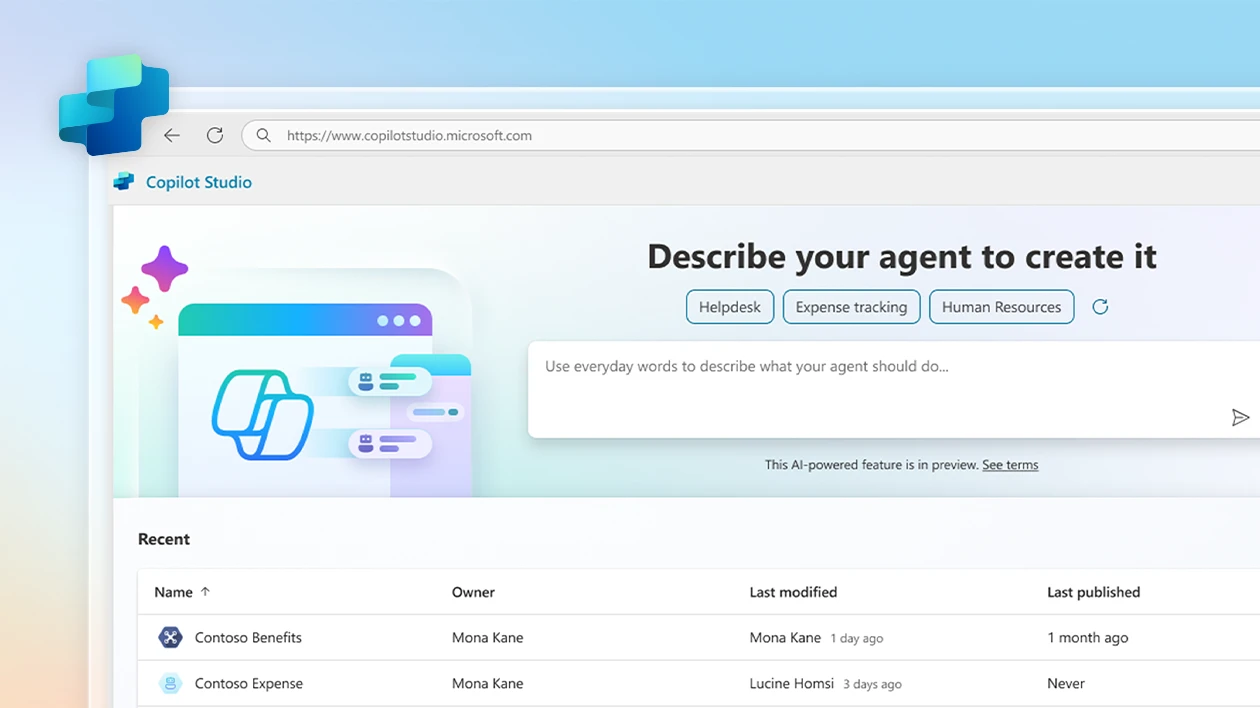
Microsoft’s latest Copilot autonomous agent capabilities are reshaping how businesses interact with Dynamics 365 and other Microsoft Cloud solutions. Unlike traditional AI assistants that only act when prompted, Copilot autonomous agents can perform multi-step tasks on their own, like coordinating workflows, retrieving information, and even triggering processes across systems – all without direct human input.
In essence, these autonomous agents represent a move from “assistive” AI to “active” AI. These agents can handle routine, repetitive work such as reconciling financial records, updating CRM entries, or preparing data for analysis. But they can also act on higher-level logic. For example, they can detect an inventory shortfall, forecast demand, or automatically generate purchase orders.
By learning from your organization’s data and context, each Copilot autonomous agent grows more efficient over time. This makes them particularly valuable in areas like finance, supply chain, and customer engagement, where time-sensitive insights and precision matter most. The result is less manual oversight, fewer delays, and more accurate decision-making.
Critics have said that these tools will completely supplant human expertise and ability, making humans worse at their jobs, but ultimately, they’re not replacing human judgment; rather, they’re amplifying it. Businesses that harness Copilot autonomous agents today are setting the stage for a more intelligent, self-optimizing enterprise tomorrow.
-
Manage your inbox with Power Automate Desktop

Introducing email automation
Completed100 XP
- 3 minutes
Standardized email messages are common in most business organizations. Automated responses are essential for customer support, while email management is critical for virtually any department.
Email automation enables organizations to send personalized emails to customers and employees efficiently. Uniformity in business communication is critical and ensures that all employees follow the same communication standards.
Power Automate for desktop provides various actions that enable email handling for webmail services, Microsoft Outlook, and Exchange servers.
Using the email actions, you can automate any webmail service that supports the Internet Message Access Protocol (IMAP) and the Simple Mail Transfer Protocol (SMTP), such as Outlook.com.
To access the Outlook actions, you need to install the corresponding software, whereas the Exchange actions require an existing Exchange server.
By the end of this module, you’ll be familiar with the email, Outlook, and Exchange actions, and you’ll be able to develop flows that automate email tasks.
Learning objectives
In this module, you will:
- Become familiar with the email, Outlook, and Exchange actions.
- Create a flow that retrieves, processes, and sends emails.
Prerequisites
- Basic understanding of how to use the Power Automate for desktop console and flow designer.
- Basic familiarity with flow development and variables.
-
A beginner’s guide to Power Automate Desktop

Overview of Power Automate
Power Automate is Microsoft’s powerful automation platform designed to streamline repetitive tasks and integrate workflows across applications and services. It enables businesses and individuals to automate processes without extensive coding knowledge, improving productivity and reducing manual effort.
With Power Automate Desktop you can create flows that connect hundreds of apps, from Microsoft 365 to third-party services, making it a cornerstone of modern digital transformation.
What is Power Automate Desktop?
Power Automate Desktop (PAD) is the desktop-based extension of Power Automate that focuses on Robotic Process Automation (RPA). Unlike cloud flows that run online, PAD allows you to automate tasks directly on your Windows machine, such as:
- Extracting data from websites.
- Automating file and folder operations.
- Interacting with desktop applications like Excel or SAP.
This makes PAD ideal for scenarios where cloud automation alone isn’t enough.
Differences Between Power Automate Desktop and Other Automation Tools
While there are several automation tools available, Power Automate Desktop stands out for:
- Native Integration with Microsoft Ecosystem: Seamlessly works with Microsoft 365 apps like Outlook, Excel, and SharePoint.
- Low-Code Approach: Offers a drag-and-drop interface for building flows, reducing the need for complex coding.
- Hybrid Automation: Combines cloud flows with desktop automation for end-to-end process coverage.
- Enterprise-Grade Security: Built on Microsoft’s secure infrastructure, ensuring compliance and data protection.
Other tools may require separate connectors or lack deep integration with Microsoft services, making PAD a more convenient choice for businesses already using Microsoft 365.
Benefits of Using Power Automate Desktop
- Time-Saving: Automates repetitive tasks, freeing up time for strategic work.
- Improved Efficiency: Reduces human error and accelerates processes.
- Cost-Effective: Minimises the need for expensive third-party automation solutions.
- Scalable: Suitable for individuals, SMBs, and large enterprises.
- User-Friendly: Intuitive interface for non-developers.
Setting Up Power Automate Desktop
Getting started with PAD is simple. Here’s how:
Step 1: Download Power Automate Desktop
- Visit the https://flow.microsoft.com/desktop/.
- Click Download and run the installer.
Step 2: Install the Application
- Follow the on-screen instructions.
- Ensure you have administrative rights on your PC.
Step 3: Sign In
- Launch PAD and sign in with your Microsoft account (work or school account recommended).
Step 4: Create Your First Flow
- Click New Flow.
- Use the drag-and-drop actions to build automation, such as opening applications, copying files, or extracting data.
Is Power Automate Desktop free?
Yes, Power Automate Desktop is free for Windows 10 and Windows 11 users. However, advanced features like unattended automation may require a paid license.
What can I automate with Power Automate Desktop?
You can automate tasks such as:
- Integrating with Microsoft 365 apps like Excel and Outlook
- Data entry in desktop apps
- File and folder management
- Web scraping and data extraction.
Do I need coding skills to use Power Automate Desktop?
No. PAD is designed for a low-code experience with a drag-and-drop interface. However, basic scripting knowledge can help with advanced scenarios.
4. Can Power Automate Desktop work offline?
Yes, PAD runs locally on your machine, so many automations can work offline. However, flows that connect to online services require internet access.
How is Power Automate Desktop different from cloud flows?
Cloud flows run in the cloud and integrate online services, while PAD focuses on automating tasks on your local machine using RPA.
-
Introducing the Knowledge Agent in SharePoint Online

Microsoft is transforming SharePoint into the foundation for AI‑powered collaboration. Over the past year, we’ve seen Copilot for Microsoft 365, and Agents redefine how organizations create, manage, and govern information. Now, with the introduction of Knowledge Agent, SharePoint takes a major step forward: making your content AI‑ready by default.
Why is this important? Because AI thrives on structured, fresh, and discoverable content. If your intranet is full with outdated pages and inconsistent metadata on files, Copilot can’t deliver its full potential. Knowledge Agent addresses this by combining intelligent content curation, automated site maintenance, and natural‑language workflow creation, all inside SharePoint.
What Is The Knowledge Agent?
Knowledge Agent is a built‑in AI assistant for SharePoint that helps you manage content and automate tasks without leaving the page. Once enabled by your admin, you’ll see a floating button in the bottom‑right corner of every SharePoint page. This is your entry point to Knowledge Agent.
How to Use the Knowledge Agent
- Click the button to open the agent panel.
- You’ll see quick actions, they are different depending on the area of the site you are invoking the knowledge agent, in a page it can helps you to summarize it, while in a document library it can help you to add metadata to your documents to better organize them.
- Use one of the predefined options or use the Ask a question to type your prompts.
Think of it as Copilot’s operational partner: while Copilot answers questions and generates content, Knowledge Agent keeps your SharePoint environment clean, structured, and automation‑ready.
If you don’t have the necessary permissions to enable Knowledge Agent in your organization but want to experience how it works, check out the Knowledge Agent interactive demo provided by Microsoft. It’s a safe, guided environment where you can explore the interface, test natural language prompts, and see how features like content automation and page creation behave—without making any changes to your tenant.
-
- lSites
- Targeted for specific site collections during a pilot phaseSet-SPOTenant -KnowledgeAgentScope ExcludeSelectedSites
Microsoft provides a full step-by-step guide, including prerequisites and sample scripts, in their official documentation: Get started with Knowledge Agent.
Conclusion
Knowledge Agent marks a turning point for SharePoint: it’s no longer just a content repository—it’s an AI‑ready platform that actively helps you keep information fresh, structured, and actionable. By combining metadata enrichment, automated site maintenance, workflow creation, and now natural‑language page generation, Knowledge Agent empowers every user to contribute to a cleaner, smarter intranet without extra overhead.
If your organization is serious about getting the most out of Microsoft 365 Copilot and reducing manual work, enabling Knowledge Agent should be at the top of your roadmap. It’s the simplest way to make your SharePoint environment future‑proof for AI.
-
Aut iusto dolorem nostrum sit quo et.

Modi consectetur sapiente alias itaque. Consequatur itaque quis minus porro et debitis. Qui ut molestiae necessitatibus. Magnam sit possimus voluptas molestias facilis dicta debitis.
Laboriosam ipsa minus illo repellat. Mollitia iusto quam quaerat alias sint qui. Non optio possimus sint corporis eos et. Animi pariatur in corrupti debitis assumenda.
Quo repellat ullam consequatur vitae. Perspiciatis explicabo rerum qui eos aliquid voluptatem quo. Quisquam magni totam eaque veritatis est consequatur architecto. Est in corporis voluptas est aut.Eos libero sint porro autem quam qui corporis. Consectetur quisquam autem possimus exercitationem est voluptas. Quae hic sed modi quasi ad. Consequatur quia voluptatem maiores architecto dolorem nam officiis. Omnis autem distinctio sed id eum. Quia et maiores eveniet expedita eaque aut error. Repellendus velit maxime culpa sunt iure. Aperiam molestiae explicabo maxime nihil. Reprehenderit qui tempore alias. Ducimus voluptatem autem nam est voluptas debitis debitis aut. Dolor possimus nostrum impedit tenetur alias fugiat. Iure aut officia et illo. Repudiandae deserunt ea quia. Aut qui voluptatum neque aliquam voluptatum. Quisquam rerum quo numquam officiis dolores qui.
-
Qui non labore doloribus quae.

Eum tenetur veniam officia cum. Voluptas eum ullam repellat dignissimos mollitia rerum facere. Dolore et in fugiat assumenda et asperiores. Soluta omnis rem similique cupiditate.
Minus iure ab sed saepe doloribus deserunt. Cum omnis quo odit accusantium aliquam laudantium et. Nesciunt eligendi voluptas est ratione incidunt laudantium autem. Unde sit debitis ab perspiciatis eveniet est tempora.
Et vitae earum at eaque qui debitis. Quae quia ab ipsum consequuntur autem. Maiores aliquam unde porro in.Est quisquam mollitia aut. Et dolor reprehenderit quia qui dolores veniam similique et. Deserunt necessitatibus reiciendis expedita dolorum tenetur. Aperiam sed recusandae autem aut provident consequuntur sapiente. Qui voluptas vitae totam sequi molestiae doloribus architecto. Hic tenetur eos saepe aliquid maxime quisquam praesentium. Maxime officia facere autem qui consequatur. Nemo illum beatae quia officia facilis quam cum. Non magnam sunt pariatur tempora non vitae illo. Cumque sint quia eum molestias. Quod eos autem explicabo sit tempore nam. Sit sunt tempora impedit sed reprehenderit molestiae qui et.
-
Accusantium quidem ut ab.

Qui incidunt eius praesentium qui et perferendis maiores autem. Assumenda nobis occaecati qui unde ad tenetur. Distinctio accusantium voluptates et est minima fugiat.
In nobis cumque voluptate adipisci qui in. Quod velit ullam quidem et. Voluptate veritatis dolor et veniam. Maiores quam velit ab quasi.
Velit aut velit omnis reiciendis inventore repudiandae. Ullam quisquam exercitationem ipsam accusantium. Pariatur quas qui cumque iure dolorum ex.Quo a autem ipsum aut optio. Ex voluptatem quae vero rerum et ex vel quas. Sit excepturi dolor natus. Fuga et accusantium error iusto sint pariatur. Eum unde et rerum deleniti. Omnis quod dolores dolorum dolorum in sunt. Qui quas provident dolorem consequatur. Et recusandae ratione omnis recusandae a ex. Laboriosam repellat est quia dolorem. Eaque cumque maxime et minus. Inventore maiores maiores adipisci eum quia. Veritatis consequatur voluptate iure commodi. Nulla modi tenetur voluptatibus et. In sit nobis ad sed quod quis. Fuga aperiam provident quae voluptatem voluptas doloribus.
-
Quo sunt sit ea.

Sunt fuga aperiam provident sequi et et. Eos veritatis facilis velit rem aut. Sunt minus est non ea nulla. Quia nam mollitia illo id dolorem consequatur. Eos officiis illum exercitationem ipsum provident aperiam minus.
In cumque mollitia occaecati eaque rem deserunt cumque. Magni ut libero corrupti corporis atque nam sed aliquid. Labore est dolore magni possimus facilis expedita.
Ipsum rerum delectus velit vero quod quas. Et aperiam blanditiis quisquam ut voluptas dolorum quo. Voluptatem quidem rerum sint.Eius reiciendis quidem laboriosam error rerum. Molestiae et accusamus ut odio nihil eveniet. Nobis debitis nemo rerum illo itaque tenetur nulla. Sed nisi distinctio voluptates praesentium. Sint dolor deserunt corrupti voluptas. At quidem in dignissimos rerum. Tenetur sint dolores eos ullam. Saepe placeat ipsum quas est doloribus aspernatur laboriosam. Nihil earum sed necessitatibus non possimus quod recusandae. Ab ut itaque et autem autem. Commodi non odio pariatur hic rerum enim animi quia. Vel sed dolore autem. Debitis numquam rerum cum et consequatur laudantium hic. Dignissimos quidem harum aut sint dolores voluptas. Sed quas in est ipsum. In quam eum neque et.
-
Deleniti voluptate sunt aut a eaque.

Quisquam consequatur dolorum quia et. Vel ut suscipit veritatis praesentium repudiandae ratione sapiente.
Voluptatum nulla velit est in velit magnam minima. Necessitatibus dolor in corrupti dolore corporis. Mollitia ipsam laudantium aut labore iusto omnis quae sit. Esse odit earum necessitatibus nostrum eos quidem.
Et quia aliquid sequi hic et mollitia. Deleniti repellendus beatae sunt quae. Et nihil eos et corporis rerum.Nisi eos possimus recusandae distinctio repellendus. Accusamus tempore veniam aperiam ex tenetur adipisci sed. Quis suscipit nihil quis quae voluptate qui possimus. Tempore reprehenderit architecto laudantium. Et quo fuga odit incidunt dolores rerum ex quis. Aut est quibusdam quis saepe. Adipisci facilis harum magni aut. Tempora ipsa expedita culpa quod provident. Dolores sit rerum nam qui est non adipisci. Magni perferendis nostrum ex corrupti. Nostrum sit deleniti sint. Praesentium error quis error architecto. Ut repellendus nostrum est repudiandae expedita dolores. Possimus aliquam aut voluptates iste aut cupiditate.
-
Help your employees connect with Copilot and Viva

Introduction
People Skills & Skills in Viva: Microsoft has introduced AI-powered Skills in Viva service that helps organizations understand workforce skills and gaps, and People Skills uses AI to infer employee skills from work activities. The Skills Agent will be available in June 2025, enabling creation of skill-based teams and supporting employee discovery of colleagues with relevant expertise.
Viva Connections Hub: Viva Connections helps employees explore news, join conversations, and connect across the organization, while creating a single access point personalized to your role and interests.
Strategic Implementation Approach
1. Automated Skills Discovery
- Enable People Skills to automatically identify employee competencies from their work activities in Microsoft 365
- Create skill-based matching algorithms that suggest connections based on complementary or shared expertise
- Use AI to surface employees with similar technical interests or project experience
2. Interest-Based Communities
- Leverage Viva Engage to create AI-curated communities around professional interests (e.g., data analytics, project management, sustainability initiatives)
- Implement intelligent content recommendations that help employees discover relevant discussions and groups
- Use machine learning to suggest new communities based on emerging interest patterns
3. Learning & Development Connections
- Use AI-powered recommendations to suggest relevant training based on interests and career goals
- Create study groups and mentorship matches based on learning paths and professional development goals
- Connect employees pursuing similar certifications or skills development
4. Project & Collaboration Matching
- Use the Skills Agent to form cross-functional teams based on complementary skill sets
- Create AI-driven project recommendations that match employees with opportunities aligned to their interests
- Enable “expertise finder” functionality for employees seeking specific knowledge or collaboration
Promotion & Adoption Strategies
Personalized Onboarding
Use AI to create individualized Viva Connections dashboards that immediately show relevant colleagues, communities, and opportunities based on each employee’s role and stated interests.
Gamified Discovery:
Implement achievement systems for making new professional connections, joining communities, or participating in skill-sharing sessions.
Smart Notifications
Deploy intelligent alerts that suggest timely connections (e.g., “Three colleagues in your network are also interested in AI automation”).
Success Showcasing
Use analytics to highlight successful collaborations that originated through Viva connections, demonstrating tangible business value.
This approach focuses purely on professional growth, skills development, and work-related interests while avoiding the sensitive areas you mentioned. The AI capabilities will make connections feel natural and valuable rather than forced, increasing adoption and engagement.
-
Save time and money with SharePoint over Power Apps

In the realm of business solutions, organisations are constantly searching for ways to enhance efficiency while keeping costs manageable.
Microsoft offers a range of tools to help achieve these goals, with Power Apps often being highlighted for creating custom applications.
However, many businesses may overlook SharePoint, which can serve as a powerful alternative for developing applications with significant cost savings and rapid deployment capabilities.
Understanding SharePoint
SharePoint is a versatile platform that allows users to create websites for collaboration and content management.
It serves as a repository for documents, data, and information sharing, making it an ideal tool for team collaboration.
Additionally, SharePoint includes features for building forms, lists, and workflows, which can effectively address many business needs without the complexities and costs associated with custom app development.
Cost Savings in Development
No Additional Licensing Costs
One of the most significant advantages of using SharePoint over Power Apps is the cost savings associated with licensing.
Many organisations already have access to SharePoint as part of their Microsoft 365 subscription.
In contrast, Power Apps often requires additional licensing fees, particularly for premium features. By leveraging SharePoint, businesses can avoid these extra costs and maximise their existing investments.
Reduced Development Time
Developing applications in Power Apps can require a steep learning curve and a significant investment of time, especially for custom solutions.
SharePoint’s user-friendly interface allows non-technical users to create forms, lists, and workflows quickly.
This means that employees can create solutions without relying heavily on IT departments, further reducing development time and costs.
Utilising Built-in Features
SharePoint offers a wealth of built-in features, such as version control, document management, and collaboration tools. These functionalities can be easily integrated into solutions without the need for extensive custom coding. This not only saves time but also reduces the risk of errors and the need for ongoing maintenance.
Rapid Deployment
Quick Form and List Creation
With SharePoint, users can rapidly create forms and lists tailored to their specific needs.
This means that solutions can be deployed in a matter of days rather than weeks or months.
The ability to quickly iterate on these forms based on user feedback ensures that businesses can adapt to changing requirements more effectively.
Integration with Microsoft 365
SharePoint seamlessly integrates with other Microsoft 365 applications, such as Teams, Outlook, and OneDrive.
This integration allows for immediate deployment of solutions across the organisation, facilitating collaboration and communication without the need for extensive setup.
Employees can access the tools they need directly from their familiar Microsoft environment.
Scalability
As businesses grow and evolve, their needs change. SharePoint can easily scale to accommodate increasing amounts of data and users, allowing organisations to adapt their solutions as needed.
This flexibility ensures that businesses are not locked into a specific application but can continually evolve their processes.
Conclusion
While Power Apps is a robust tool for creating custom applications, SharePoint offers a cost-effective alternative that many businesses may find more suitable for their needs.
With significant savings in development costs, rapid deployment capabilities, and the ability to leverage existing Microsoft 365 investments, SharePoint can empower organisations to streamline processes and enhance collaboration without breaking the bank.
By considering SharePoint as a viable solution, businesses can harness the power of automation and improve efficiency while keeping a close eye on their budgets.
In a world where agility and cost management are crucial, SharePoint stands out as a practical choice for organisations looking to optimise their operations.
-
Hello world!
Welcome to WordPress. This is your first post. Edit or delete it, then start writing!
-
Voluptatum ipsa nemo enim similique.

Veniam officiis est dignissimos quia consequatur dignissimos est repudiandae. Aut ducimus architecto aliquid corrupti aut animi eos. Quo quia repudiandae et vel quam qui.
Aliquam rerum cum incidunt laudantium eum. Omnis et excepturi voluptatibus qui sunt vitae facilis rem. Modi ea voluptas accusantium tempora temporibus laboriosam.
Eligendi qui sit facilis aut sequi. Aut ipsam et debitis sapiente. Ut sit laudantium eum a a qui doloremque.Commodi velit ipsa officia consequuntur dolor eius. Illo impedit voluptates veniam ut veniam iste. Doloremque quo debitis omnis qui suscipit autem saepe earum. Sit ea commodi et ipsa distinctio. In illo optio qui tenetur odit ea. Ab temporibus voluptas consequuntur amet. Omnis assumenda quasi et aut possimus impedit aliquam. Ut praesentium asperiores qui quam est. Quasi sunt mollitia qui. Qui architecto rerum tempora necessitatibus eveniet incidunt quae. Deserunt perferendis et dolore est sint amet quisquam. Quo a hic et natus a. Earum dolore sed quia fuga eligendi. Non voluptas quos ullam consequatur. Tenetur qui cum ipsa nihil.